Three accessibility skills for developers
5 min read
Whether you're already a hot shit developer building the next spotify, or only just fell in love with coding, here are three technical skills that every developer should hone to build more accessibly.
1. Learn about browsers accessibility testing tools
Did you know many browsers have integrated accessibility testing tools?
Firefox for example comes with a lot of useful tools, such as automated testing, a colour perception simulator,
visual tabbing order, and the accessibility tree which can be exported to JSON.
Have a look:
Firefox Accessibility Inspector Documentation
Firefox Accessibility Inspector is nice for its simplicity, but other tools such as Lighthouse (e.g Chrome and Brave) have more extensive features:
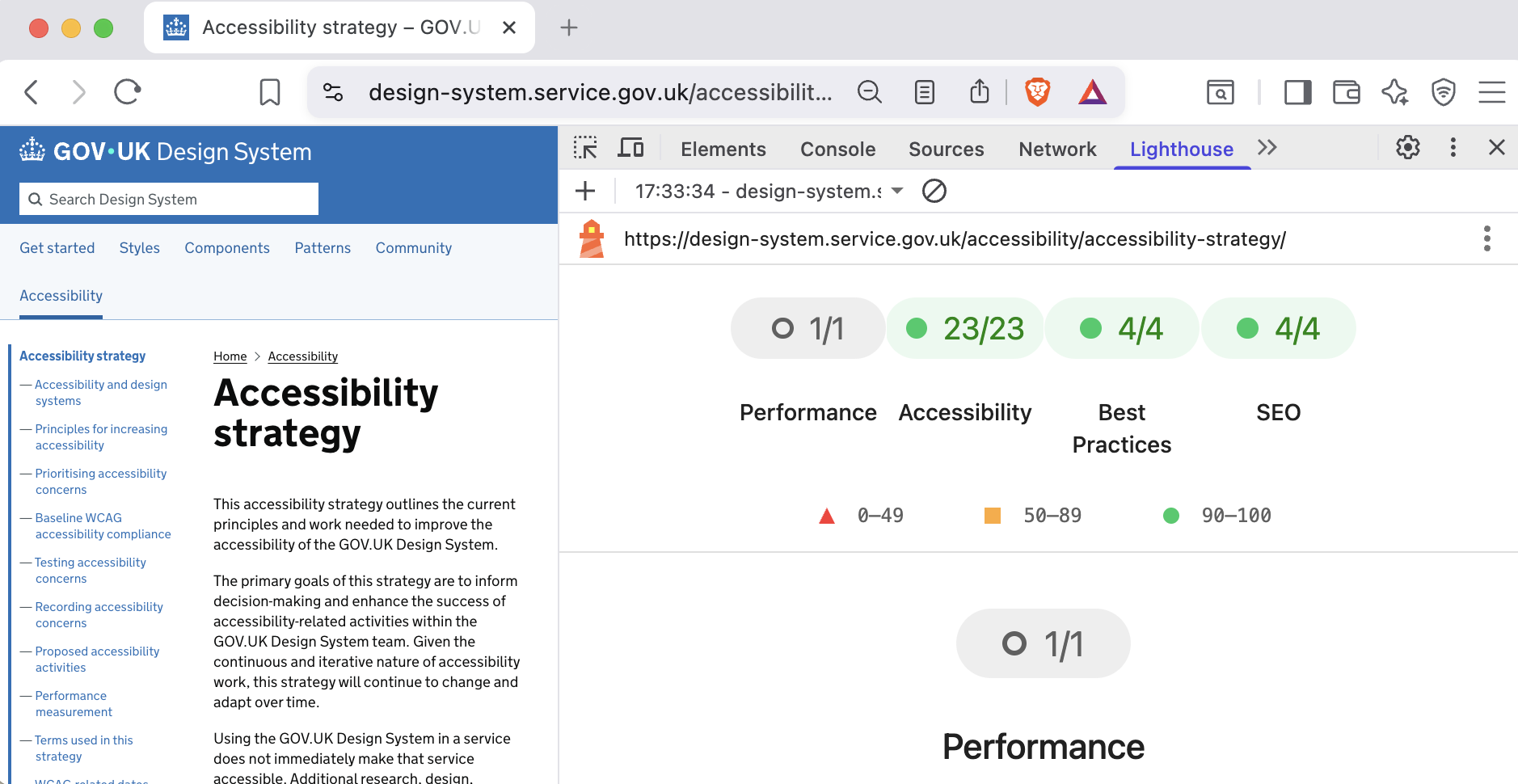
2. Learn to navigate by keyboard only
A great website doesn't rely on a mouse alone for navigation. Ensuring good keyboard navigation can make interacting with your webpage faster and easier for a lot of people. Yet, many developers don't know there are specific keyboard controls for native HTML elements, so let's change that! Here are some of the most common keyboard controls:
Tab
Use Tab to go to the next interactive element.
Shift + Tab
Use Shift + Tab to go to the previous interactive element.
Enter or return
Use Enter (or return) to activate links and some buttons
spacebar
Use spacebar to check checkboxes, click buttons and expand menus
You can also use spacebar to scroll down
Shift + spacebar
Use Shift + spacebar to scroll up
arrow keys
Use the up, down, left, right arrow keys to move between radio buttons and options in select drop-down menus
Esc
Use Esc key to close pop up menus, overlay modals, select menus, and dismiss notifications
Note: Not every website is going to implement keyboard navigation in the same way, but this is how native HTML elements can be interacted with, at least in theory. A good place to practive this are UK Government websites, for example the GOV.UK Design Systems webpage.
3. Learn how to use a screen reader
There is a lot to know about using a screen reader and novices will look clumsy compared to folks who use screen readers every day. It cannot be said often enough: Disabled people are the experts, so you should try to get native screen reader users to test your app.
That being said, I think there is value in understanding that there are many different ways to perceive the same webpage, and if you only use your eyes you will miss a whole different dimension.
Moving between elements: Tab, Shift + Tab
Before we turn the screenreader on, let's start with what to do
once the screen reader is running:
Use Tab and Shift + Tab to move between interactive elements.
That already gives you a better idea about how a page is structured
for screen readers.
To read text or other non-interactive elements, you can try clicking on them using your mouse, or check out the links below for more info on the keyboard controls for each screen reader.